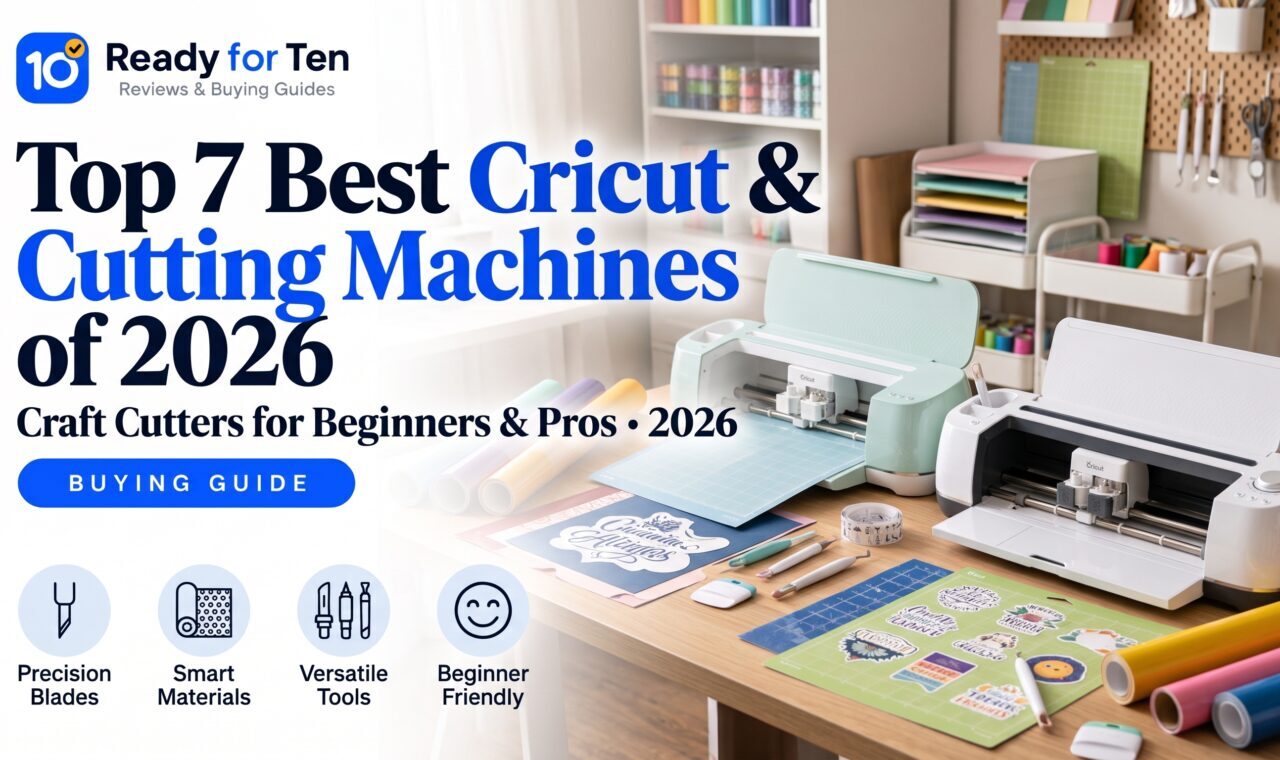
Most people shopping for a Cricut get stuck on one question: is the Explore 3 enough, or does the Maker 3 earn its higher price? Here is the short answer. The Explore 3 handles vinyl, iron-on, cardstock and Smart Materials. The Maker 3 adds Cricut’s Adaptive Tool System, including the Rotary Blade and Knife Blade, so it can cut fabric, leather, thin wood and similar materials. If your projects stay in the first group, the Explore 3 is usually the sensible buy. If you know you want the second group, the Maker 3 is the one to get.
I’m Karl D. McGrath, and I should be upfront about how this guide was put together. I did not hands-on test these machines for this article. It is built from research: manufacturer specifications, owner feedback and a comparison of how the product lines relate to each other. I quote no prices because they change often, so check the current listing for pricing, bundle contents and warranty terms. Where I give a figure, it is manufacturer-stated.
The guide also looks beyond those two machines, for readers who need something smaller, larger or standalone. That means five alternatives: the Cricut Joy, Cricut Joy Xtra, Cricut Venture, Silhouette Cameo 5 and Brother ScanNCut SDX225. I chose them by asking what a shopper might actually need instead of a mid-size Cricut: portability, production-size cuts, different software, or no computer at all. This is a buying-decision guide, not a project guide.
Our top picks
- Best for vinyl, iron-on, cardstock and stickers at a lower price: Cricut Explore 3
- Best for fabric, leather, thin wood and the widest range of materials: Cricut Maker 3
- Best for compact cutting with a bit more room: Cricut Joy Xtra
- Best for the most portable, entry-level Cricut: Cricut Joy
- Best for small businesses and wide, long cuts: Cricut Venture
- Best for a non-Cricut alternative with robust design software: Silhouette Cameo 5
- Best for standalone cutting with a built-in scanner: Brother ScanNCut SDX225
Comparison chart
Widths and formats below are the manufacturers’ stated figures as I understand them. Warranty terms can change and may differ by seller or region, so confirm them on the current listing before you buy.
| Product | Best for | Cutting width / format | Warranty |
|---|---|---|---|
| Cricut Explore 3 | Vinyl, iron-on, cardstock and sticker projects | 12 in mats; Smart Materials in long runs without a mat | Cricut limited warranty (commonly one year); confirm on listing |
| Cricut Maker 3 | Fabric, leather, thin wood and the widest material range | 12 in mats; Smart Materials in long runs without a mat | Cricut limited warranty (commonly one year); confirm on listing |
| Cricut Joy Xtra | Cards, labels and small decals with extra room | Compact; about 8.5 in wide mat | Cricut limited warranty (commonly one year); confirm on listing |
| Cricut Joy | Tiny projects and portability | Compact; narrow format of about 4.5 in | Cricut limited warranty (commonly one year); confirm on listing |
| Cricut Venture | Signs, banners and production work | Large format; roughly 25 in wide per Cricut | Cricut limited warranty (commonly one year); confirm on listing |
| Silhouette Cameo 5 | Crafters who want a non-Cricut machine and software | 12 in wide cutting area | Check current listing |
| Brother ScanNCut SDX225 | Standalone cutting with a built-in scanner | 12 in wide mat format | Check current listing |
Best for vinyl and paper crafts on a budget: Cricut Explore 3

Key Features
- Cuts 100+ materials per Cricut, including vinyl, iron-on, cardstock and Smart Materials
- Smart Materials can be cut without a mat in long runs, which suits repeated decals
- Fine-Point Blade included, with a dual tool holder for a pen or scoring stylus
- Cuts roughly twice as fast as the Explore Air 2, per Cricut
- Bluetooth connection, works with Design Space on desktop and mobile
The Explore 3 is the machine I would point most beginners toward. If your projects are vinyl decals, iron-on shirts, cardstock cards, stickers and paper goods, it covers nearly all of it, and you are not paying for tools you may never use.
The limit is the tool system. It works with the blades made for the Explore line and does not take the Maker’s rotary or knife blades. Anything thick, like basswood or heavy leather, is outside its range, and fabric is far more limited than on the Maker. Check Cricut’s current materials list before buying if fabric is a priority.
What we liked
- Handles the most common craft materials at a lower price than the Maker 3
- Mat-free Smart Materials cutting saves time on batches of decals or labels
- The dual holder lets you draw and cut in one pass
What we did not like
- No Adaptive Tool System, so no rotary, knife, debossing or engraving tools
- Not the right choice if you plan to sew, or to cut leather or thin wood
- Blades, mats and transfer tape are extra costs to plan for
Why we picked it
It is the best value for vinyl, iron-on and paper projects. If you can name your projects and none involve fabric or wood, buy this and put the savings toward materials.
Best for fabric, leather and wood: Cricut Maker 3

Key Features
- Adaptive Tool System with Rotary Blade, Knife Blade, debossing and engraving tools
- Cuts 300+ materials per Cricut, including fabric without a stabilizer backing
- Knife Blade 3 can cut thicker materials like basswood and leather, up to about 2.4 mm
- Smart Materials cut mat-free in long runs, as on the Explore 3
- Roughly twice the speed of the original Maker, per Cricut
The Maker 3 is the Explore 3 plus a wider set of tools. Everything the Explore does, it does too. The difference is the Adaptive Tool System, which accepts the rotary blade for fabric and the knife blade for thicker materials. That matters if you quilt, sew, make leather accessories or cut wood for signs and ornaments.
Note that the blades and tools are not all in the box. The rotary blade, knife blade and other specialty tools are usually separate purchases, so check the current listing and bundle contents. If you will mostly cut vinyl and cardstock, you are paying extra for capability you will not use.
What we liked
- The widest material range in Cricut’s lineup, per the manufacturer
- Cuts fabric without a stabilizer backing, which saves prep time for sewists
- Knife Blade 3 opens up leather and basswood projects
What we did not like
- Costs more than the Explore 3, and specialty tools add to the total
- The extra tools are wasted on a vinyl-only crafter
- Thick materials take multiple passes, so expect slower, noisier work
Why we picked it
If fabric, leather or thin wood is on your project list, the Maker 3 is the Cricut to buy. It is the only one in this guide built around those materials.
Best for compact crafting: Cricut Joy Xtra

Key Features
- Smaller footprint that fits on a shelf or small craft desk
- Cuts a wider 8.5 in mat size than the standard Joy
- Works with Smart Materials and Cricut’s pens
- Bluetooth control from Design Space
- Good fit for card makers, teacher gifts and small-batch stickers
The Joy Xtra sits between the pocket-sized Joy and the full 12 in machines. The wider mat gives you room for larger cards, labels and small decals without making you give up a corner of your desk. It is a sensible choice if space is tight but the standard Joy feels too small.
Be realistic about its size. It will not handle a full-size iron-on shirt design or a big sign the way an Explore or Maker will. Many people who start small end up wanting the larger format, so if your projects are growing, consider skipping straight to the Explore 3.
What we liked
- Takes up little room and is easy to store
- More cutting area than the standard Joy
- Works with Smart Materials and Cricut pens
What we did not like
- Too small for large shirt designs or big signs
- Sits close in price to the Explore 3 in some listings, so compare before buying
Why we picked it
It is the best fit for cards, labels and small decals in a small workspace. Pick it for the size, not the price, and check current listings against the Explore 3 first.
Best for tiny projects and portability: Cricut Joy

Key Features
- Very compact and light, easy to store or take to a class
- Handles small-format vinyl, iron-on and card inserts
- Smart Materials can run without a mat for longer labels and decals
- Bluetooth-only control from Design Space
- Limited cutting width, so it is not suited to large shirts or big signs
The Joy is the machine for people who want to try cutting without giving up desk space. Cricut lists a cutting width of roughly 4.5 in, so think name labels, planner decals, greeting cards and small iron-on designs. It is not a smaller Explore 3, and it does not use the same blades and accessories. Confirm that before buying extras.
It connects over Bluetooth only. If your computer lacks Bluetooth or you want a wired link, check that before you buy.
What we liked
- Small and light enough to store on a shelf or carry to a workshop
- Mat-free cutting with Smart Materials suits repeated labels
- The lowest-cost way into the Cricut ecosystem
What we did not like
- The narrow cutting width rules out adult-size shirt designs and large decals
- Blades and tools differ from the larger machines
- Bluetooth is the only connection option
Why we picked it
Pick the Joy if your projects are small and you value portability over capacity. If you already know you want shirts or signs, skip it and start with the Explore 3.
Best for wide and long cuts: Cricut Venture

Key Features
- Large-format machine that cuts far wider and longer than the 12 in Explore and Maker mats
- Designed for production-type work like big vinyl signs, banners and wall decals
- Compatible with a wide range of materials, including Smart Materials in long runs
- Faster than Cricut’s smaller machines, per Cricut
- Needs substantial desk or table space
The Venture is for people whose projects have outgrown a 12 in machine: a small shop cutting vinyl for signs, vehicle lettering or wall graphics, or a heavy crafter who is tired of tiling designs. Because it is built for long, wide material, the savings come from fewer seams and less hand-weeding of separate pieces.
It is overkill for most households. Check the current listing for exact cutting dimensions, supported materials and tool compatibility, because they differ from the Explore and Maker lines. Also plan for a table that can hold the machine and feed material in and out.
What we liked
- Handles projects that simply will not fit on a 12 in machine
- Faster cutting, per Cricut, helps with batches
- Works within the familiar Design Space workflow
What we did not like
- Large footprint and a price well above the smaller machines
- Material and tool options may be narrower than the Maker 3, so check before buying
- Far more machine than casual crafters need
Why we picked it
It is the pick for anyone selling large vinyl work or regularly cutting long runs. If most of your projects are shirts, cards and mugs, the Explore 3 or Maker 3 is the better value.
Best for a non-Cricut alternative: Silhouette Cameo 5

Key Features
- 12 in wide cutting area, Bluetooth and USB connection
- Uses Silhouette Studio software, with a free basic version and paid upgrades
- Automatic blade adjustment for supported blades
- Cuts vinyl, cardstock, heat-transfer material and more
- No subscription required for core software features
The Cameo 5 is the closest rival to the Cricut Explore line. It handles the same everyday materials, including vinyl, heat-transfer material and cardstock. Its biggest difference is the software. Silhouette Studio is a capable design program, with a free basic tier and paid editions that unlock more features. Some tools, such as importing certain file types, may need an upgrade, so check which edition covers your workflow.
Silhouette also sells its own blades and accessories. Cricut materials and tools do not always carry over, and Cricut’s wider community and project library may make a Cricut easier for beginners.
What we liked
- Core software works without a subscription
- USB and Bluetooth give flexible connection options
- Automatic blade adjustment reduces trial and error with supported blades
What we did not like
- Advanced software features can mean paying for an upgrade
- Fewer ready-made projects and tutorials than Cricut’s ecosystem
- Learning curve for those used to Design Space
Why we picked it
Choose the Cameo 5 if you want to avoid a subscription model and prefer desktop design software. If you want the simplest start and the most community help, a Cricut remains the easier path.
Best for standalone cutting without a computer: Brother ScanNCut SDX225

Key Features
- Built-in scanner lets you trace hand drawings or cut printed patterns directly
- Operates from its touchscreen without needing a computer
- Cuts fabric, paper, vinyl and thin materials, with accessory blades for thicker work
- Includes built-in designs and fonts
- Wireless connection for transferring designs from compatible apps
The ScanNCut SDX225 is the odd one out in this guide, and that is the reason to consider it. Cricut and Silhouette machines are built around software on a computer, tablet or phone. The Brother is built around the machine itself. You place a drawing, a stamp outline or a printed pattern on the mat, scan it, and the machine turns it into a cut line you can adjust on the touchscreen. For someone who does not want to open design software every time they sit down to craft, that is a different way of working.
It is especially interesting for people who work from physical sources. Scrapbookers who want to cut around a printed image, quilters and sewists who want to cut appliqué shapes, and anyone who draws a shape by hand and wants it cut out will see the benefit. The built-in designs and fonts mean you can also start a simple project with no computer connected. The wireless connection is there for when you do want to bring in designs from compatible Brother apps. From my research, owners often describe the software side as less polished than Cricut Design Space, so treat the wireless features as a bonus rather than the main attraction.
Material range is broad, covering fabric, paper, vinyl and other thin materials, and Brother sells accessory blades for thicker work. Fabric cutting is a particular strength of the line, though it normally requires a support or backing sheet, so factor that into your supply budget. If you mainly want to cut wood, leather or thick craft materials, compare Brother’s blade specifications with the Cricut Maker 3’s Knife Blade before you commit, because I would not assume they are equivalent.
The trade-offs are community and ecosystem. Cricut has a huge base of tutorials, project files, Smart Materials and third-party accessories. Brother has a smaller following, so you will find fewer ready-made project walkthroughs. The machine is also less compact than the Joy models, so check the dimensions against your desk. Warranty terms and what is included in the box can change by retailer and listing, so confirm both on the current Amazon page.
What we liked
- The built-in scanner is a real differentiator for tracing drawings and cutting printed patterns
- Works from the touchscreen, so no computer or phone is required for basic projects
- A good fit for fabric, appliqué and scrapbooking work
- Accessory blades extend the range beyond thin materials
- Built-in designs and fonts get you started right away
What we did not like
- Smaller community and fewer project tutorials than Cricut
- Software and app experience is generally considered less polished than Design Space
- Fabric and thicker materials often need extra supplies, which add to the total cost
- Not aimed at the mat-free, long-roll workflows that Cricut Smart Materials allow
Why we picked it
I picked the SDX225 for the reader who would rather scan and cut than design on a screen. If your projects start from paper patterns, drawings or printed images, or you simply want a machine that works without a computer, it makes more sense than forcing a Cricut into that role. If you want the biggest community, the most materials and the simplest route to long vinyl runs, the Explore 3 or Maker 3 remains the safer choice.
Buyer’s guide: how to choose
Explore 3 vs Maker 3: the core difference in tools and materials
Both machines share the same basic design: Bluetooth, Design Space, Smart Materials support and a 12 in mat. The difference is the tool system. The Explore 3 is built around the Fine-Point Blade, with a second holder for a pen or scoring stylus. The Maker 3 uses the Adaptive Tool System, which adds the Rotary Blade, Knife Blade 3, and debossing and engraving tools. Cricut lists 100+ compatible materials for the Explore 3 and 300+ for the Maker 3.
Do you need the Maker 3’s extra blades? A simple decision test
List the first five projects you want to make. If they are decals, stickers, cards, iron-on shirts and paper crafts, the Explore 3 covers you. If you want to sew from cut fabric pieces, or cut leather, basswood or similar thick materials, you need the Maker 3. If you are unsure, ask whether you would actually buy a rotary or knife blade project’s supplies this year. If the answer is “maybe someday,” I would save the money.
Cutting width and mat size: 12 in vs compact vs large-format
The Explore 3 and Maker 3 use 12 in wide mats. The Joy Xtra uses an 8.5 in mat, and the Joy is narrower still. The Venture is the choice for wide and long work such as large signs and wall decals. Check the current listing for exact maximum dimensions before you buy.
Design Space, subscriptions and software: what is free and what is not
Design Space is free to download. Cricut Access is an optional paid subscription that unlocks a larger library of designs, fonts and images. You can upload your own SVG or image files without it, and the free library has some content. Silhouette Studio also has a free basic tier with paid upgrades. The Brother ScanNCut has built-in designs on the machine itself.
Smart Materials and mat-free cutting: what to know before buying
Smart Materials (Smart Vinyl, Smart Iron-On and similar) cut on the Explore 3, Maker 3, Joy and Joy Xtra without a mat. That is useful for long or repeated cuts. They are priced higher per square foot than standard rolls, and a mat still gives you more material choices. Check which Smart Materials your chosen model supports.
Hidden costs: blades, mats, pens, transfer tape and heat press
The machine is only the start. Plan for extra mats (they wear out), weeding tools, transfer tape, and a good supply of vinyl or iron-on. Pens and specialty blades are sold separately. For shirts, a household iron works, but a heat press such as the Cricut EasyPress gives more even results. I would treat that as an optional upgrade.
Space, noise and workspace setup
Plan for the machine plus clearance in front and behind, because the mat travels back and forth during cuts. Cutting is moderately loud, so consider where you will run it if others are asleep or working nearby. The Joy models are easy to store. The Venture needs a sturdy table and real room.
Beyond Cricut: Silhouette and Brother alternatives
The Silhouette Cameo 5 suits crafters who like Silhouette Studio and want core software features without a subscription. The Brother ScanNCut SDX225 suits people who want to scan, cut and design directly on the machine without a computer. Both have smaller communities and accessory ecosystems than Cricut, so check availability of the blades and materials you plan to use.
Warranty and support: check the current listing
Frequently Asked Questions
What is the main difference between the Cricut Explore 3 and the Cricut Maker 3?
The tool system. The Maker 3 accepts the Rotary Blade, Knife Blade 3 and other Adaptive Tool System tools, which opens up fabric, leather and thin wood. The Explore 3 is focused on vinyl, iron-on, cardstock and similar materials.
Can the Cricut Explore 3 cut fabric?
Only in limited cases, generally fabric with a stabilizer or bonded backing. For unbacked fabric, the Maker 3 with the Rotary Blade is the better fit. Check Cricut’s current compatibility list.
Can the Maker 3 cut wood and leather?
Yes, within limits. With the Knife Blade 3 it can cut thin woods like basswood and leather up to about 2.4 mm, per Cricut. It is not a replacement for a laser or a saw.
Is the Maker 3 worth the extra money over the Explore 3?
Only if you will use the extra tools. Sewists, leather crafters and anyone cutting thick materials will likely get value from it. For vinyl, stickers and cards, the Explore 3 does the same work for less.
Do I need a Cricut Access subscription to use these machines?
No. Access is optional. You can use free content and upload your own designs. The subscription mainly adds convenience through a larger library of designs and fonts.
Can I use the Explore 3 or Maker 3 without a computer?
You need a computer, tablet or phone running Design Space to send designs to either machine. If you want to cut without a computer, look at the Brother ScanNCut SDX225.
Which Cricut is best for making t-shirts with iron-on vinyl?
The Explore 3 is the best value for most people, since its 12 in width covers most shirt designs. The Maker 3 does the same job, so pay for it only if you also want its other tools.
What is the difference between Cricut Joy and Joy Xtra?
The Joy Xtra cuts wider, using an 8.5 in mat, so it handles larger cards and decals. The Joy is smaller and more portable. Check the current listings for exact dimensions.
Do I need a heat press with a Cricut?
No. A household iron can apply iron-on, though results are less even. A heat press is a worthwhile upgrade if you make shirts regularly or sell them.
Is Silhouette Cameo 5 better than a Cricut?
Neither is better across the board. The Cameo 5 suits people who prefer Silhouette Studio and no-subscription core software. Cricut has the larger ecosystem of materials and community projects. Choose by software preference and the materials you want to cut.
Final thoughts
For most people, my top pick is the Cricut Explore 3. It covers vinyl, iron-on, cardstock and Smart Materials at a lower price than the Maker 3, and those are the projects most beginners actually make. If you know you want fabric, leather or thin wood, step up to the Cricut Maker 3. The best value pick is the Explore 3 for most buyers, or the Joy Xtra if your projects are small and your desk is smaller. Check current pricing and warranty details on the listings before you buy.